
Locked out of WordPress? Change your admin password through phpMyAdmin
Lost admin email, broken SMTP, hacked account: when the WordPress reset link won't work, you can update your password directly in the database. Here's the safe way.
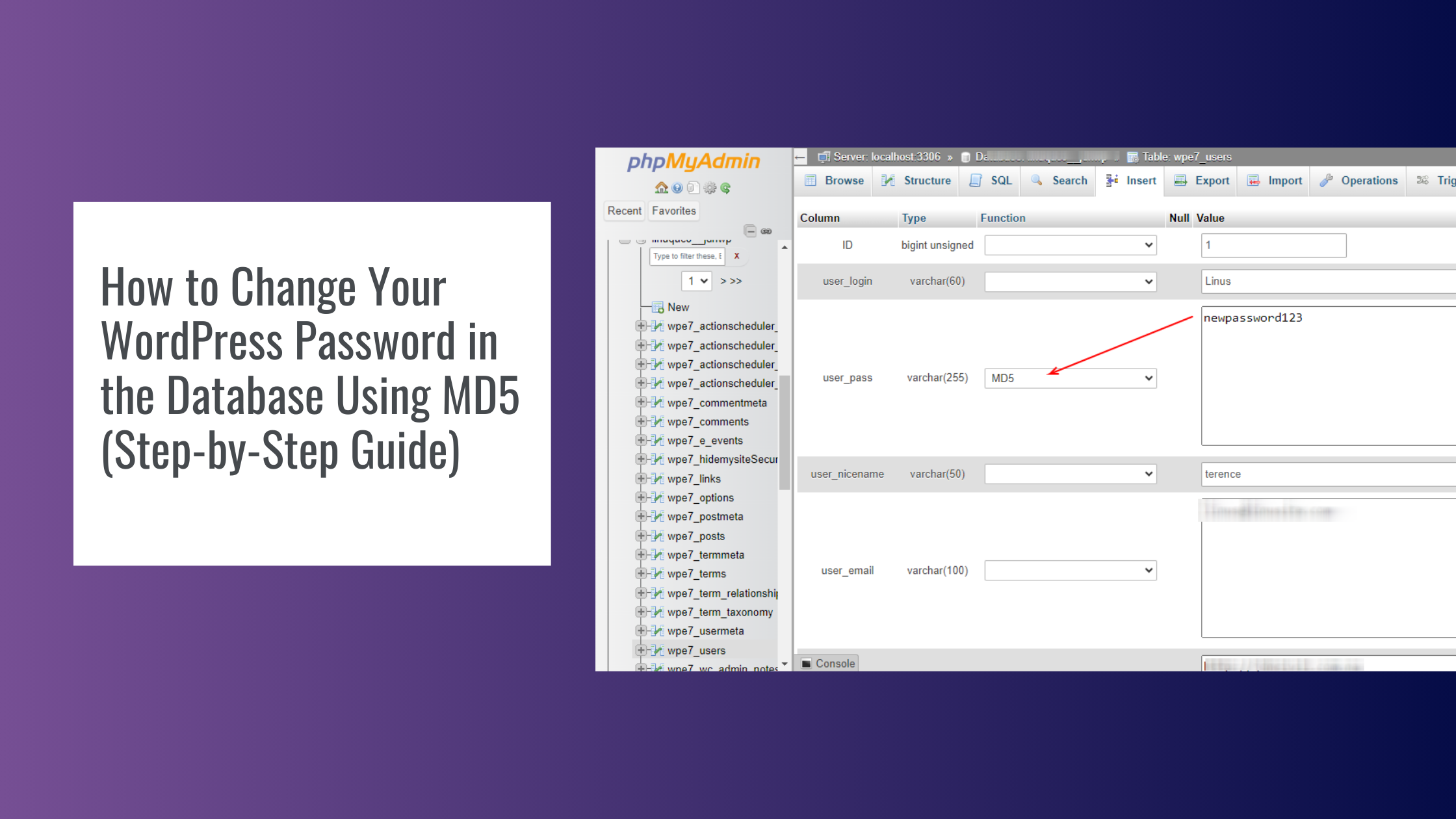
Locked out of WordPress is one of the most common emergencies we get on a Sunday afternoon. The reset link goes to an old email, SMTP is broken, or the admin account has been compromised. The fastest fix is to update the password directly in the database via phpMyAdmin.
What you'll need
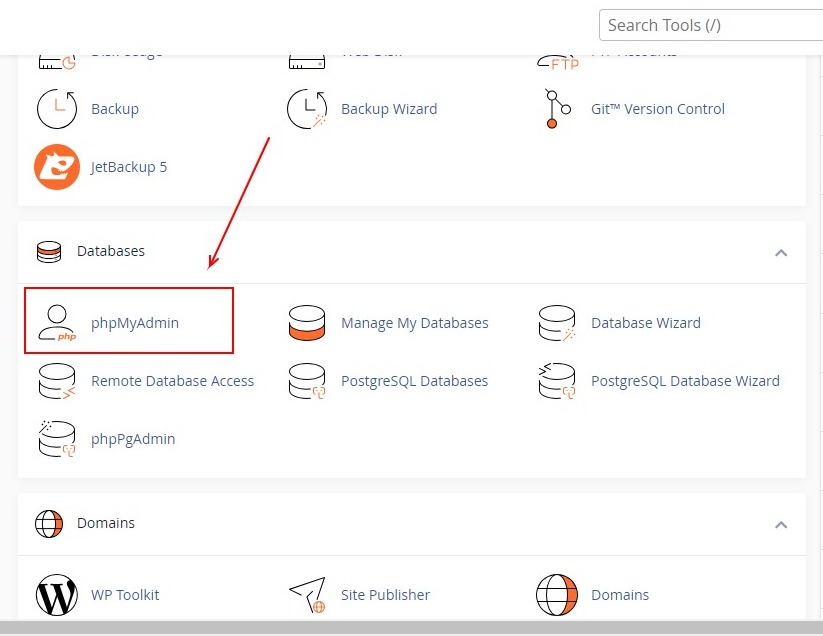
Access to your hosting panel (cPanel, aaPanel, Plesk, HostHigher, etc.)
A phpMyAdmin login
The name of your WordPress database (find it in
wp-config.php, theDB_NAMEline)
The 6 steps
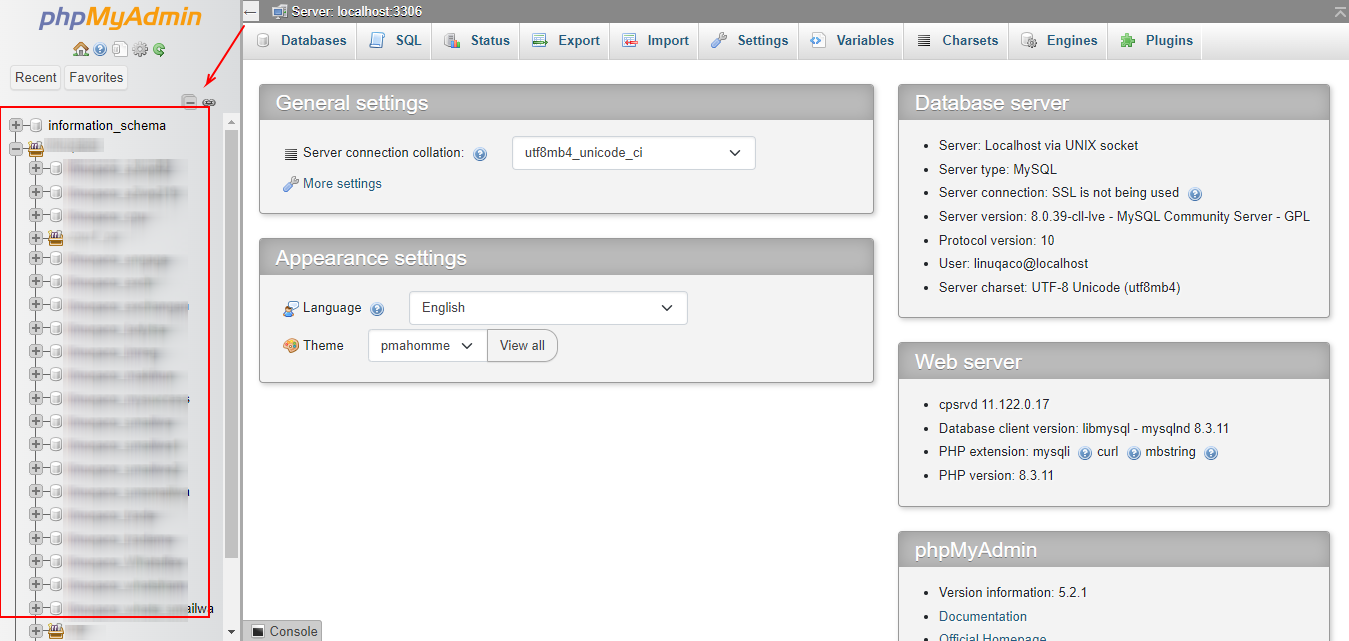
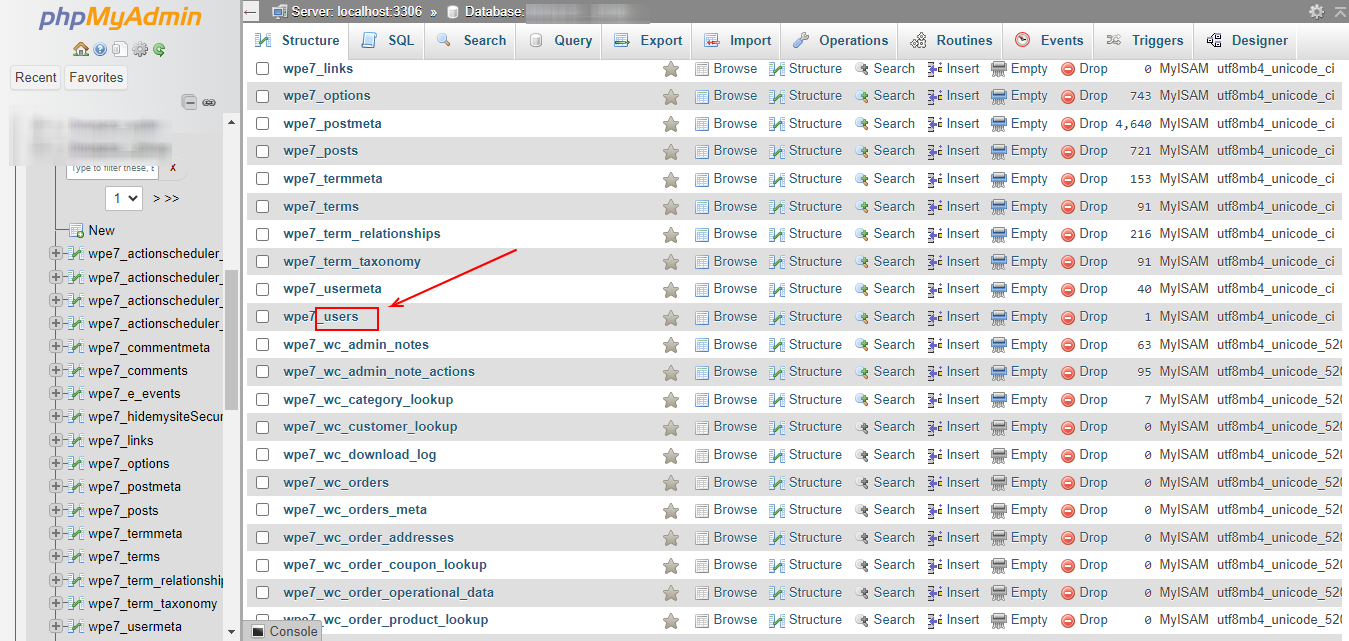
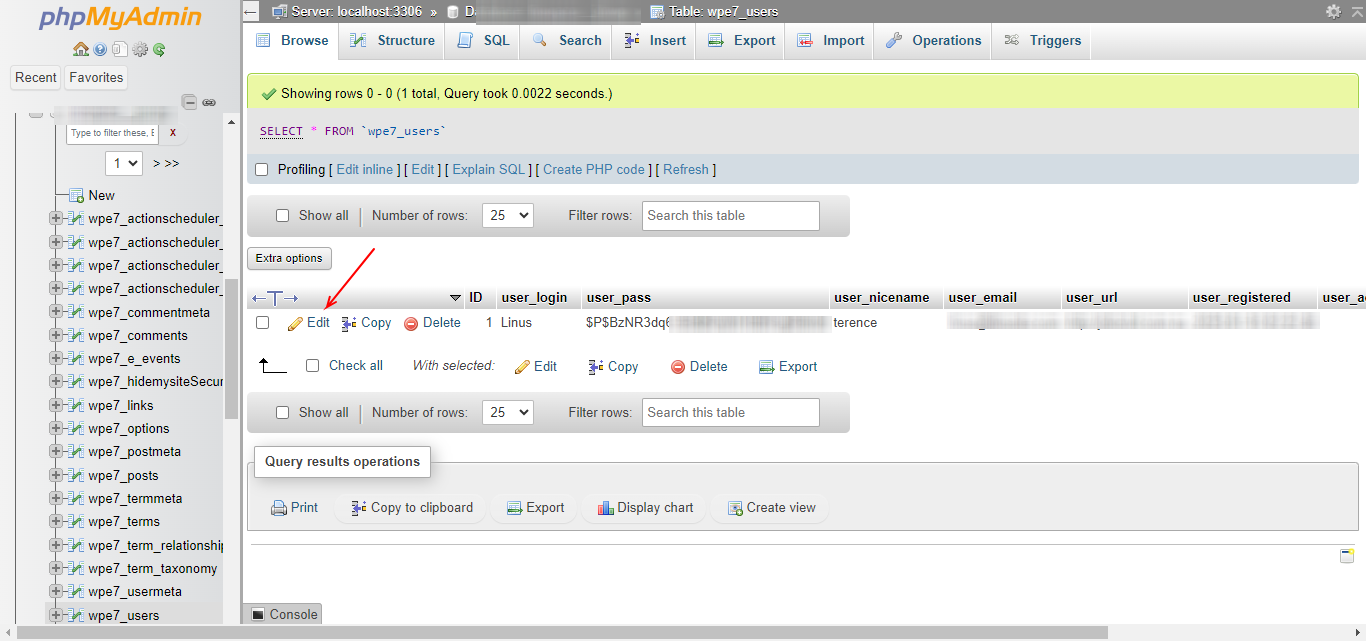
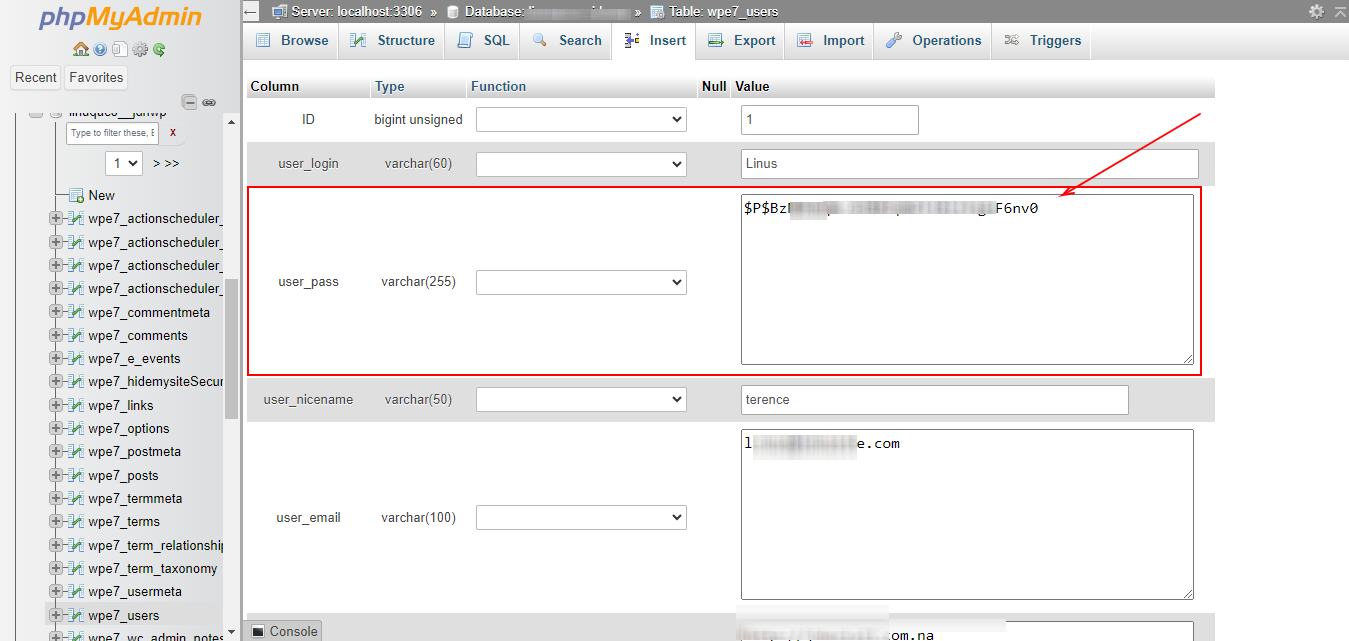
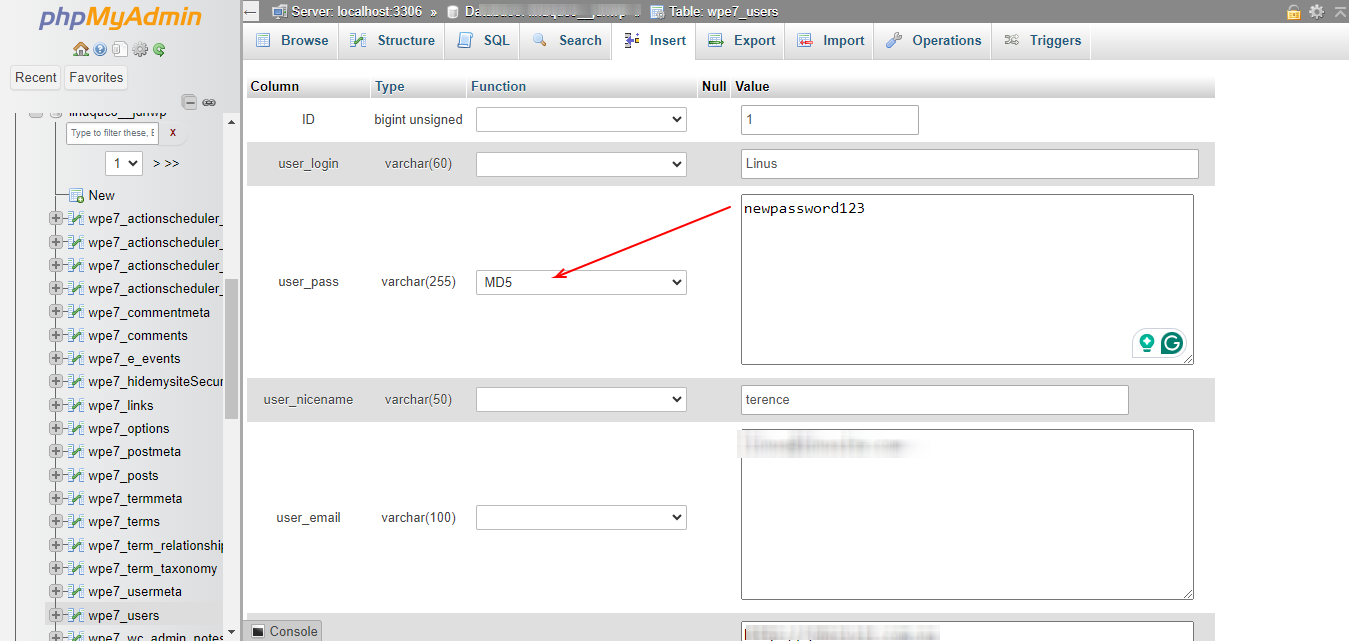
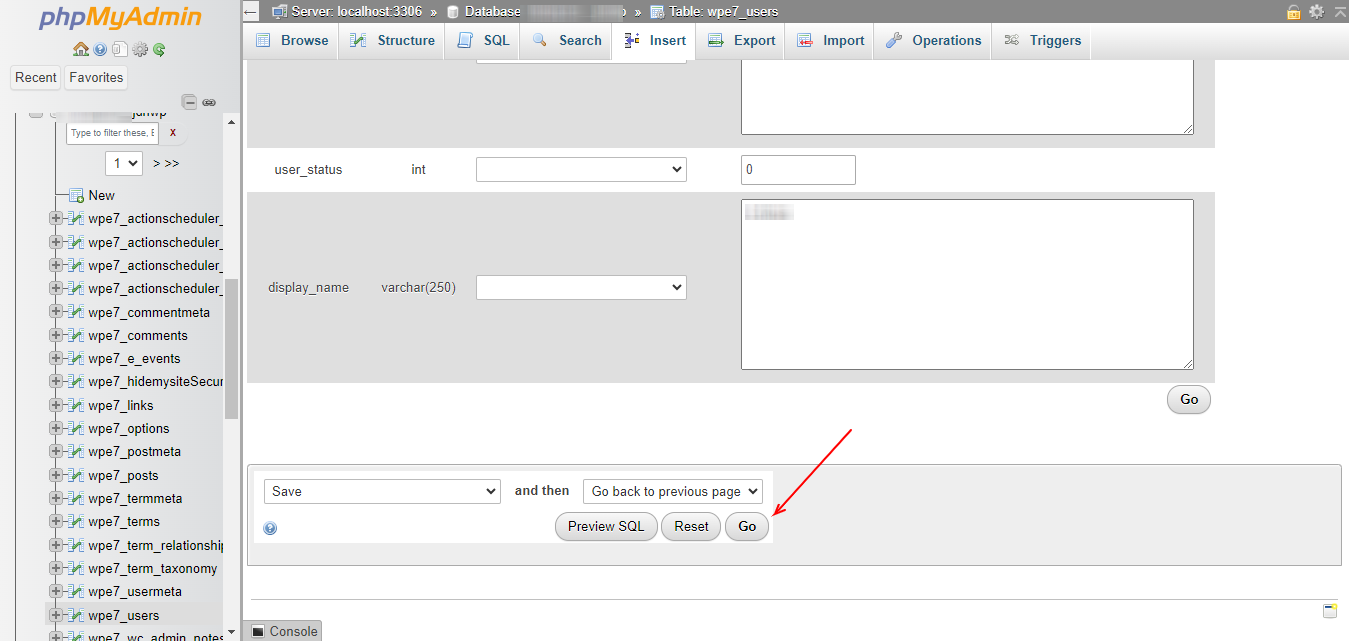
1. Log in to phpMyAdmin and open your WordPress database from the left sidebar. 2. Click on the wp_users table (your table prefix may differ, wp_ is the default). 3. Find your user row by username or email and click Edit. 4. Set the user_pass value to your new password. This is the critical bit: WordPress stores passwords hashed, not plain. Use the Function dropdown next to the field and select MD5, then type the new password in the Value field. 5. Click Go (Save). WordPress will upgrade the MD5 hash to its preferred bcrypt format on your next login: that's by design. 6. Log in at /wp-admin with the new password.
Why MD5 still works (briefly)
WordPress accepts MD5-hashed passwords for backwards compatibility and silently upgrades them. You're not weakening security long-term: the bcrypt upgrade happens automatically on first login.
After you're back in
Change the password again via the WordPress UI to be sure the bcrypt upgrade ran.
Update the recovery email to one you actually control.
Enable two-factor authentication.
If you suspect a compromise, run a full malware audit. We do that as part of Fix My Website.
Reference images
More on WordPress
Restrict WordPress media library to each user's own uploads (no plugin)
By default every WordPress user sees every uploaded file. Two lines in functions.php restrict the media library so each user only sees their own.
Looking for a top WordPress expert in Namibia? Here's what "top" should actually mean
Anyone can call themselves a WordPress expert. Here's what to ask before you hire one, and the work that proves it.