

-
Linus Moses
- October 7, 2024
Time needed: 20 minutes.
When you lose access to your WordPress admin dashboard or forget your password, it can be frustrating. One of the quickest ways to reset your WordPress password is by updating it directly in the database using phpMyAdmin and MD5 encryption. This guide will walk you through the process of changing your WordPress password using the MD5 hashing method within the database.
- Access Your Hosting Control Panel
To begin, you need to log into your hosting account and navigate to your control panel (cPanel or another hosting interface). Look for phpMyAdmin, the tool that manages your database.

- Open phpMyAdmin
Find your WordPress database from the list on the left panel.
Click on the database to view its tables.
- Find the Users Table
In the database, look for the table that contains your users’ information. Typically, it’s called
wp_users, but the prefix might be different if you used a custom prefix during installation.
- Locate Your User Account
Find the row corresponding to your WordPress username. You can look under the
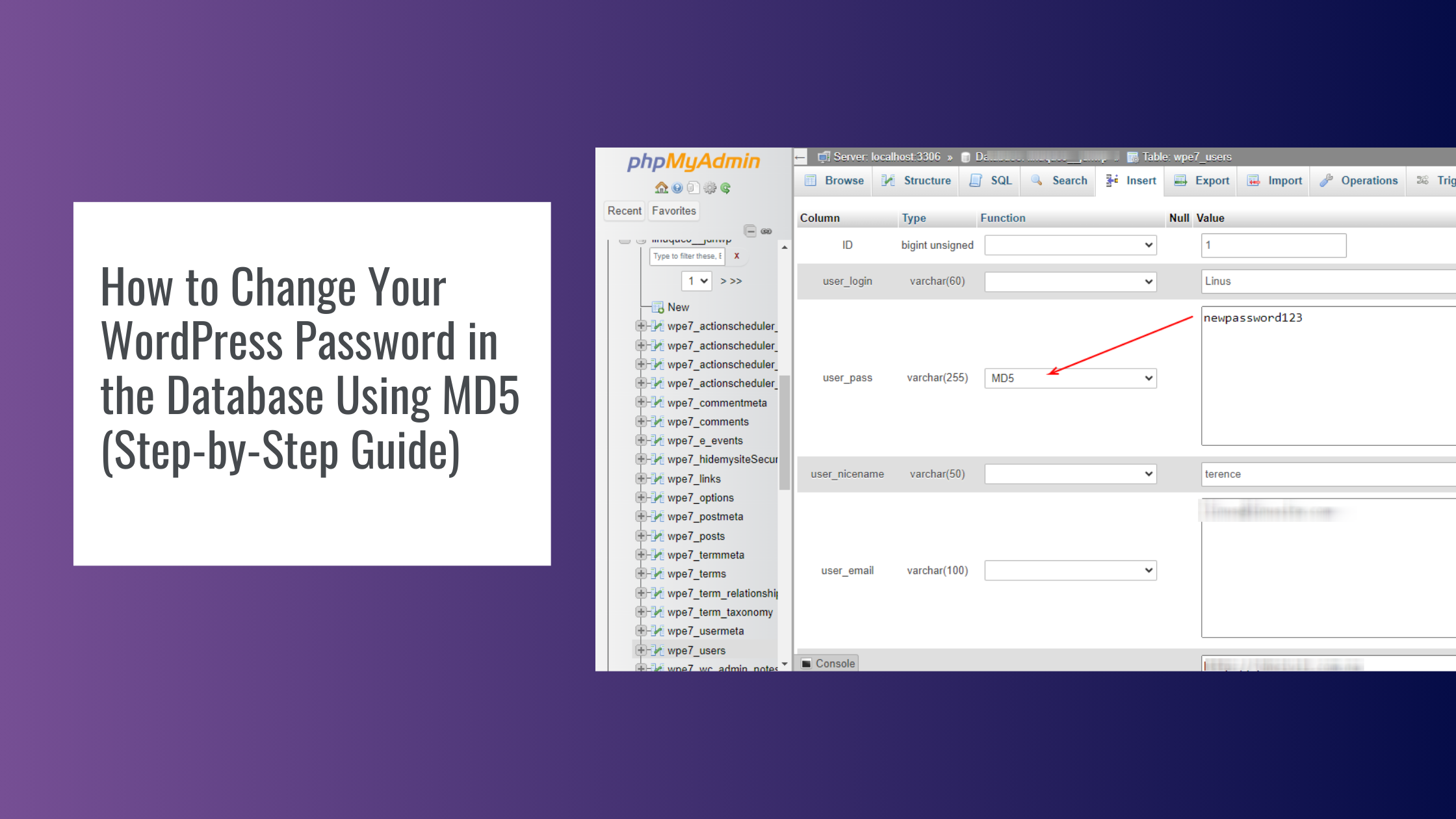
user_logincolumn to find it. Click on Edit next to your username.
- Change Your Password
Now that you’re in the user’s details:
In the row labeleduser_pass, you will see a string of characters that represent your current password (encrypted).
Replace this string with a new password of your choice, Typenewpassword123into theValuefield
- Choose Encryption MD5
Select MD5 from the dropdown in the
varcharthe column next to theuser_passfield.
- Save Your Changes
Once you’ve updated the password and set the function to MD5:
Scroll to the bottom of the page and click Go to save the changes.
- Login to WordPress
You can now log into your WordPress admin panel using the new password you set in the database. Navigate to your WordPress login page, enter your username, and the newly changed password.
Why MD5?
MD5 (Message Digest Algorithm 5) is a hashing function commonly used in earlier versions of WordPress for password encryption. Though MD5 is not as secure as modern hashing methods, it’s still used for backward compatibility in certain scenarios. Once you log in using the new MD5 hashed password, WordPress will automatically update the password with a stronger encryption algorithm.
Additional Security Tips
- Use Strong Passwords: Ensure your new password is strong, with a mix of letters, numbers, and special characters.
- Update WordPress: Always keep your WordPress installation, themes, and plugins up to date to avoid vulnerabilities.
- Backup Your Database: Before making any changes in the database, ensure you have a full backup to prevent data loss in case something goes wrong.
By following these steps, you can quickly regain access to your WordPress admin without needing to go through the hassle of email resets.
Subscribe
Login
0 Comments
Oldest